
Ever since I started tinkering with home setups, I’ve realized that most tech companies love to sell you a solution that’s way too expensive for what you actually need. They’ll try to convince you that your entire router is junk and that you need to drop three hundred bucks on a fancy new mesh system just to get a decent signal in the kitchen. Honestly? That’s usually a load of nonsense. Most of the time, when you’re wondering how to fix slow wifi, the problem isn’t your bank account—it’s just a few simple tweaks you haven’t tried yet.
I’m not here to sell you a subscription or some high-end hardware you don’t need. My goal is to show you that most connection hiccups are totally figure-out-able with a little bit of common sense and a few minutes of your time. I’ve spent way too many late nights troubleshooting my own setup so you don’t have to, and I’ve boiled everything down into a few straightforward, DIY steps. We’re going to skip the tech jargon and get your speeds back up to where they should be, without breaking the bank.
Table of Contents
Check Your Internet Speed Test Results First
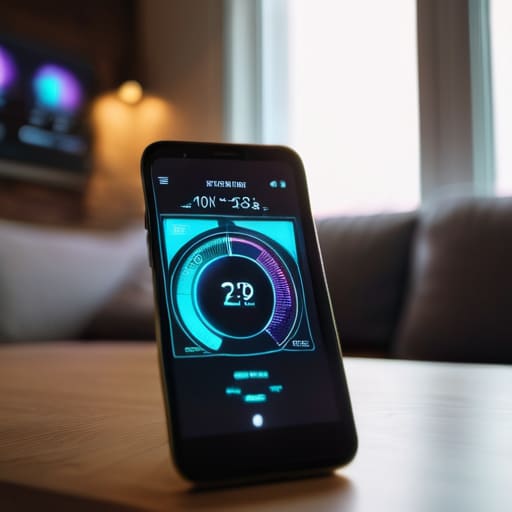
Before we start moving furniture or digging through settings, we need to figure out if the problem is actually your signal or if your provider is just dragging its feet. I always start by running a quick test to see what I’m actually paying for. Head over to a site like Speedtest.net or Fast.com and run a couple of rounds. When you look at your internet speed test results, don’t just look at the big number; pay attention to the “ping” or latency too. If that number is sky-high, you’re dealing with lag, which is a different beast than just having a slow download.
I like to run these tests in two different spots: right next to the router and then in the room where the connection usually fails. This tells me immediately if I’m dealing with a bandwidth issue or if I just need to look into some wifi router placement tips. If the speed is great near the box but drops off a cliff in the bedroom, we know the signal is struggling to travel through your walls. Once we have those numbers, we aren’t just guessing anymore—we’re troubleshooting with a plan.
Reduce Wireless Interference With Simple Tweaks
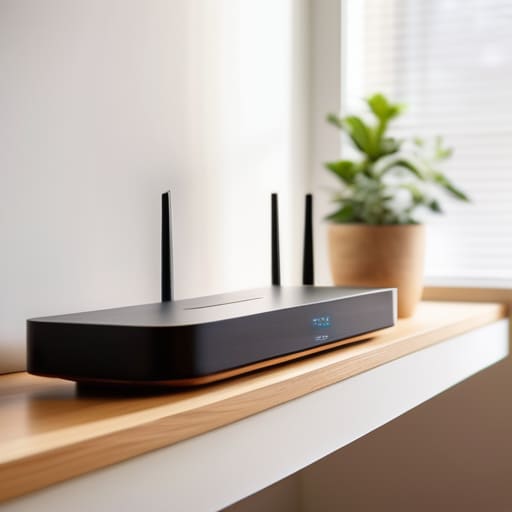
If your speed test results came back looking a little pathetic, the culprit might not be your provider, but rather the invisible walls you’re fighting against. Most of us tuck our routers away in a corner or inside a cabinet to keep things looking tidy, but that’s a recipe for disaster. To really reduce wireless interference, you need to think about line-of-sight. I always tell people to get that router up high and out in the open. If it’s sitting behind a heavy TV or tucked under a metal desk, you’re basically asking your signal to run a marathon through a brick wall.
Another quick win involves changing wifi frequency bands depending on what you’re doing. If you’re sitting right next to the router, jump on the 5GHz band for that sweet, high-speed connection. But if you’re heading into the backyard, switch over to the 2.4GHz band; it’s slower, but it handles walls and distance much better. It’s all about optimizing your setup based on where you actually spend your time. A few little adjustments here can make a massive difference in how your tech behaves.
5 quick ways to get your signal back in gear
- Give your router a classic “power cycle.” I know, it sounds cliché, but unplugging the thing for about 30 seconds and plugging it back in clears out the digital cobwebs and gives it a fresh start. It’s the DIY equivalent of a nap, and it works more often than you’d think.
- Find a better home for your router. If yours is tucked away in a corner cabinet or buried behind a stack of books, you’re basically choking your signal. Get it up high and out in the open—ideally in a central spot in your house—so the waves can actually reach your devices.
- Kick off the “bandwidth hogs.” If someone in the next room is downloading a massive 4K movie or a huge game update, your connection is going to tank. Check which devices are sucking up all the juice and see if you can pause those heavy tasks while you’re trying to get work done.
- Switch up your frequency. Most modern routers have two bands: 2.4GHz and 5GHz. The 2.4GHz one travels through walls better, but the 5GHz one is way faster. If you’re sitting close to the router, try jumping onto the 5GHz band to dodge that congestion.
- Update your router’s firmware. Just like your phone or laptop, your router needs software updates to run smoothly and fix bugs. Log into your router’s settings page once in a while to see if there’s an update waiting; it can make a world of difference in stability.
Quick wins to get your WiFi back on track
Run a speed test before you start tinkering so you actually know if the problem is your service provider or just your router acting up.
Move your router out of the shadows—getting it away from walls and other electronics can clear up a lot of the signal “noise” slowing you down.
Don’t overcomplicate it; most lag issues can be solved with a few simple adjustments to where your gear sits or a quick hardware reboot.
## A quick reality check
“Look, before you go out and drop a couple hundred bucks on a fancy new router, take a second to see what you’re actually working with. Most of the time, the problem isn’t that your internet is ‘broken’—it’s just that your signal is fighting an uphill battle through walls and clutter.”
Nathan Cole
Wrapping It All Up
Look, I know it’s frustrating when you’re right in the middle of a movie or a crucial work call and everything just starts buffering. But if you follow what we’ve talked about, you’ve already done the heavy lifting. We started by running a speed test to see what we were actually working with, and then we moved on to clearing out that wireless interference by moving the router or adjusting the placement of your gear. Most of the time, fixing slow WiFi isn’t about buying a thousand-dollar mesh system; it’s about making a few smart, simple adjustments to the setup you already have. If you’ve checked your speeds and cleared the physical path for your signal, you’re already ahead of the game.
At the end of the day, technology can feel like this big, intimidating mystery, but I promise you, it’s a lot more figure-out-able than it seems. You don’t need a degree in network engineering to get your connection back on track—you just need a little patience and a willingness to tinker. Don’t let a spinning loading icon get you down. Keep tweaking, keep testing, and don’t be afraid to try a different approach if the first one doesn’t stick. You’ve got this, and once you get that signal running smooth again, you’re going to feel like a total pro.
Frequently Asked Questions
Is my old router actually the problem, or do I just need to change some settings?
It’s a fair question, and honestly, it’s usually a bit of both. If your router is more than five years old, it might just be struggling to keep up with all our modern gadgets. But before you go dropping cash on a new one, let’s look at your settings. Sometimes a simple firmware update or switching your frequency channel can breathe new life into old hardware. Let’s see if we can save you some money first.
Will buying those WiFi extenders actually work, or are they just a waste of money?
Look, I’ve been there—staring at a dead zone in the hallway and thinking a $50 extender is a magic fix. The honest truth? They’re a bit of a band-aid. They can help push a signal into a far corner, but they often cut your speed in half because they’re busy talking to both your router and your device at once. If you’ve got a big house, save your cash and look into a Mesh system instead.
How much does the number of devices connected in my house actually slow things down?
Think of your WiFi like a single garden hose. If you’re just watering a flower, the pressure is great. But if you hook up five more hoses to that same line, everyone’s getting a trickle instead of a spray. Every smart bulb, tablet, and gaming console is pulling from that same “bandwidth bucket.” If you’ve got a dozen devices all fighting for attention at once, that’s exactly why your Netflix starts buffering.