I was sitting in a coffee shop last Tuesday, staring at my phone in pure disbelief as I watched my data meter climb like a runaway freight train. I hadn’t even done anything crazy—just checked a couple of emails and scrolled through a news feed—but there it was: another massive chunk of my monthly allowance gone. It’s honestly ridiculous how much these carriers bank on us being too busy or too frustrated to figure out how to save mobile data ourselves. They want you to believe that the only solution is to cough up an extra twenty bucks a month for a “premium” plan, but I’m calling foul on that.
Look, I’m not here to give you a lecture on digital minimalism or tell you to throw your smartphone in a lake. I just want to help you stop bleeding money for things you don’t even need. In this guide, I’m breaking down the actual, hands-on tweaks I use to keep my usage under control without sacrificing my sanity. We’re going to skip the tech-jargon fluff and get straight to the settings and habits that actually work. By the time we’re done, you’ll have a solid game plan to reclaim your gigabytes and keep your bill exactly where it belongs.
Table of Contents
Stop Apps From Consuming Data in the Background
This is where most people lose their data without even realizing it. You think you’re just scrolling through a few photos, but in the background, your apps are busy updating, syncing, and refreshing content like they have an unlimited budget. It’s a sneaky way to drain your plan, but you can easily stop apps from consuming data by taking control of your settings.
On an iPhone, I usually head straight for the Cellular menu to see exactly which culprits are hogging the bandwidth. If you see an app you rarely use sitting there with a massive usage number, just toggle it off. For Android users, you’ll want to look for the option to limit background data usage within your connection settings. This basically tells your phone, “Hey, don’t go talking to the internet unless I actually open this app.” It’s one of those small tweaks that makes a massive difference in how long your data lasts throughout the month. I’ve done this on my own phone, and it’s been a total game-changer for avoiding those mid-month data warnings.
Monitor Mobile Data Consumption to See Where It Goes
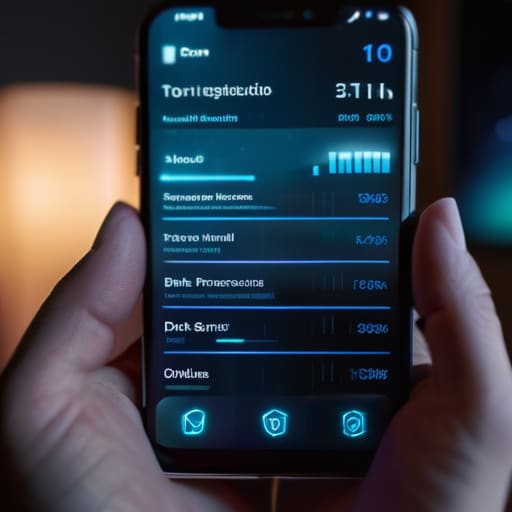
Before you start changing a dozen different settings, you need to figure out exactly who the culprit is. It’s easy to blame social media, but sometimes it’s a random weather app or a system update you forgot about. Most people don’t realize how much they’re actually burning through until they look at the breakdown. To monitor mobile data consumption effectively, head into your phone’s settings and look for the “Data Usage” or “Cellular” tab. This will give you a neat little list of every single app on your device and exactly how many megabytes (or gigabytes) they’ve eaten up over the last month.
Once you see that list, you’ll probably have a “eureka” moment. You might find that a game you haven’t played in weeks is still pulling data in the background, or that your video streaming app is set to high definition by default. Seeing the raw numbers helps you decide where to draw the line. Instead of guessing, you can make a surgical strike—targeting only the biggest offenders to save data while streaming or browsing. It’s all about working smarter, not harder, so you aren’t wasting time tweaking apps that aren’t actually costing you a dime.
5 Quick Wins to Stop the Data Drain
- 1. Hunt down the “Data Saver” mode in your settings. Most modern iPhones and Androids have a built-in toggle that basically tells your phone, “Hey, don’t be greedy with the bandwidth.” It’s a lifesaver when you’re running low.
- 2. Get your streaming apps on a diet. Whether it’s Netflix or YouTube, go into the app settings and manually lower the video quality. You don’t need 4K resolution on a five-inch screen, and your data plan will definitely thank you.
- 3. Make your Wi-Fi work for you by downloading ahead of time. If you know you’re going to be on the train or out for the afternoon, download your Spotify playlists or Google Maps areas while you’re still plugged into your home internet.
- 4. Watch out for those “Auto-Play” settings on social media. There is nothing quite as frustrating as scrolling through Facebook or Instagram and having five different videos start playing at once, eating up your gigabytes in the background.
- 5. Turn off automatic app updates. There’s nothing worse than being halfway through a grocery shop only to realize your phone is currently downloading a 2GB system update in your pocket. Set your App Store or Play Store to “Update over Wi-Fi only.”
Quick Wins to Keep Your Data in Check
Take a look at your data usage settings first; it’s usually a few sneaky background apps draining your gigabytes without you even knowing it.
Turn off auto-updates for your apps when you’re on cellular data—letting them wait until you’re on Wi-Fi is one of the easiest ways to save.
Don’t let it stress you out; once you see exactly which apps are the culprits, you can manage them and stop seeing those “data limit reached” warnings.
## My Philosophy on Data
“Think of your mobile data like a leaky faucet in your kitchen; you can keep mopping up the puddles with expensive data top-ups, or you can just go under the sink, find the culprit, and tighten the valve. Once you know which apps are ‘dripping’ in the background, you stop paying for what you aren’t even using.”
Nathan Cole
Putting It All Together
At the end of the day, saving your mobile data isn’t about living in a digital desert; it’s just about being a little more intentional with how you use your connection. We’ve covered a lot of ground here, from shutting down those data-hungry background apps that sneakily eat your allowance, to keeping a close eye on your usage logs so you aren’t blindsided by a massive bill at the end of the month. If you take even just two or three of these steps—like switching to Wi-Fi whenever you’re sitting at home or tightening up your social media settings—you’ll see a noticeable difference in your data balance almost immediately.
I know that staring at a “data limit reached” warning can feel pretty frustrating, but remember: this is one of those things that is totally figure-out-able. You don’t need to be a tech wizard or a network engineer to take control of your phone; you just need to tinker with the settings until they work for you. Once you get these small habits down, you won’t have to worry about constantly checking your meter. So, go ahead and dive into your settings, make those tweaks, and enjoy that extra breathing room on your plan. You’ve got this!
Frequently Asked Questions
Will turning off background data make my apps stop sending me important notifications?
That’s a great question, and honestly, it’s the one thing that worries me most before I start toggling settings. The short answer is: yes, it can. If you cut off background data entirely, some apps won’t be able to “check in” to tell you someone texted you or that your email arrived. My advice? Don’t go scorched earth. Instead of a total blackout, just pick the heavy hitters—like social media or video apps—and leave the essentials like WhatsApp or your calendar alone.
Is there a way to tell if my phone's operating system itself is the thing eating up all my gigabytes?
That’s a fair question, and honestly, it’s one of the most frustrating things to troubleshoot. To see if the OS is the culprit, head into your settings and look for “System Services” or “System Data” under your data usage breakdown. If you see huge chunks there, it’s usually just your phone grabbing big updates or syncing cloud backups. If it’s spiking, try scheduling those updates for when you’re on home Wi-Fi instead.
Does using "Data Saver" mode actually slow down my internet speed while I'm browsing?
Here’s the short answer: It’s not exactly “slowing down” your connection, but it can definitely feel that way. When you flip that switch, your phone stops grabbing high-res images and video in the background to save bytes. So, while your actual signal strength is fine, websites might look a little “crunchier” or take a second to load because they aren’t pulling in all the heavy, pretty stuff. It’s a trade-off: less data, but a slightly less polished experience.